
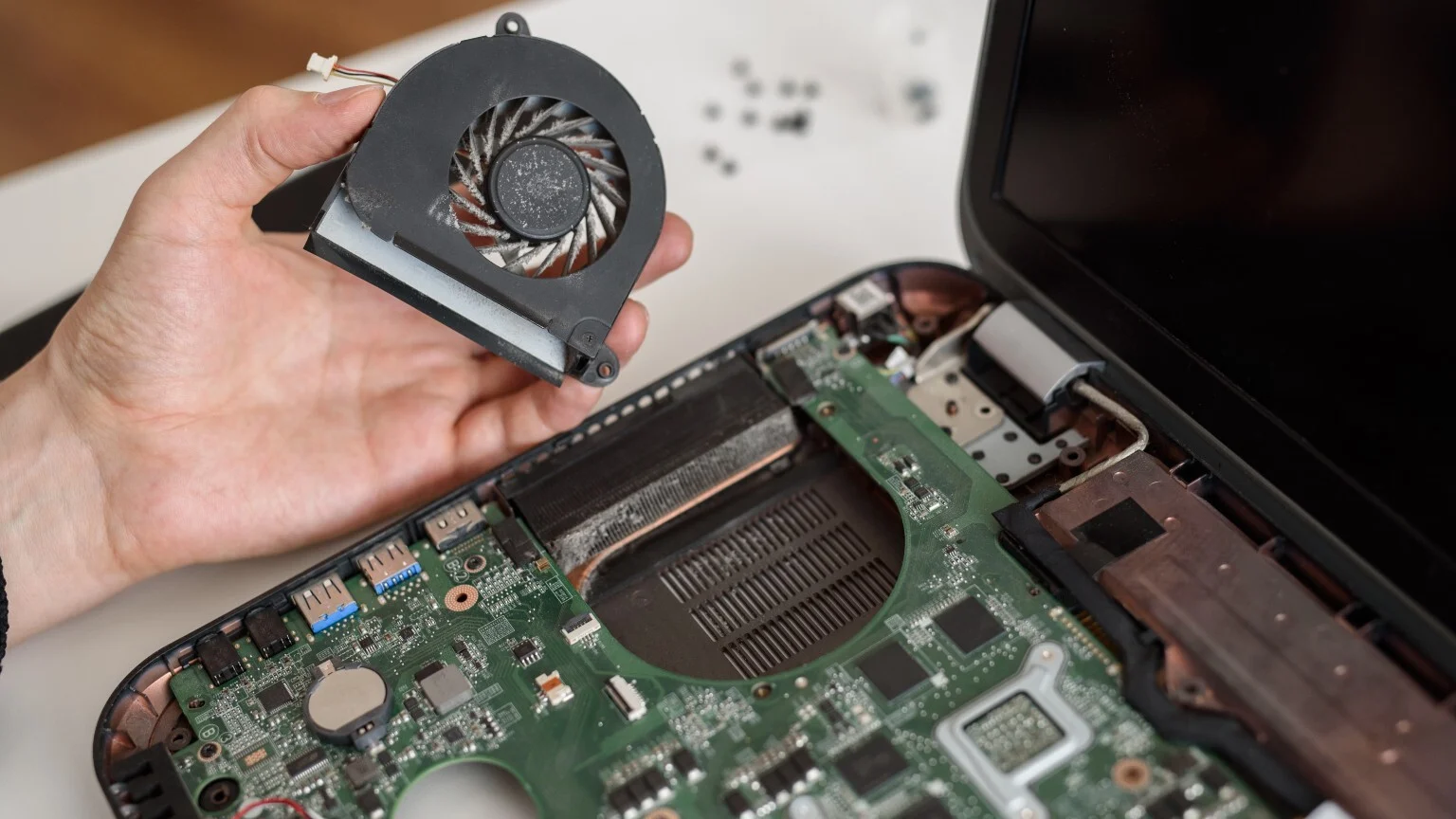
PC fans play a critical role in keeping your computer cool and preventing overheating. However, a noisy fan can be distracting, concerning, and sometimes a sign of deeper problems. Understanding why PC fans make noise and learning practical ways to fix it can improve your computer’s performance, extend hardware life, and create a quieter working environment. This guide breaks down the causes of fan noise and provides actionable solutions for beginners and everyday users.
How PC Fans Work and Why Noise Happens
PC fans are designed to move air through the case, cooling components like the CPU, GPU, and power supply. When these fans spin faster, they produce more noise, which is often normal but can become excessive if something is wrong.
Key Points:
-
Fans increase speed as your PC heats up to maintain safe temperatures.
-
Dust, misalignment, and worn bearings can create grinding, buzzing, or rattling sounds.
-
A consistently loud fan may indicate high system load or a cooling issue.
Understanding how fans work helps you distinguish between normal operational noise and potential problems.
Dust Accumulation: A Common Culprit
Dust is one of the most frequent reasons for noisy fans. Over time, dust settles on fan blades and in the heatsinks, making the fan work harder and spin faster.
Solutions for Dust Issues:
-
Use compressed air to blow dust off the fans and internal components.
-
Hold the fan blades in place while cleaning to avoid spinning damage.
-
Clean your PC regularly, ideally every 2–3 months, especially if you have pets or live in a dusty environment.
Regular cleaning reduces fan speed requirements, lowering noise and improving cooling efficiency.
Loose or Misaligned Fans
Fans that are loosely attached or misaligned can vibrate against the case or heatsinks, creating rattling or buzzing sounds.
How to Fix:
-
Turn off your PC and unplug it before inspecting.
-
Check screws and brackets securing the fans and tighten any that are loose.
-
Ensure fans are mounted flat and do not touch nearby cables or components.
Secure fans run smoothly, preventing vibration-induced noise and extending fan life.
Worn Bearings and Aging Fans
Over time, the bearings inside fans can wear out, causing grinding or irregular spinning noises. This is especially common in older computers or budget fans.
Solution Options:
-
Lubricate fan bearings with a small drop of suitable machine oil if accessible.
-
Replace old fans with new ones if lubrication isn’t possible or doesn’t work.
-
Consider quality fans with fluid dynamic or ball bearings for longer life.
Replacing aging fans restores quiet operation and prevents potential overheating caused by malfunctioning fans.
High CPU or GPU Usage
Fans often become louder when your processor or graphics card is under heavy load. This is normal behavior, but sustained high speeds can be distracting.
Practical Tips:
-
Check your task manager or system monitor to identify programs causing high usage.
-
Close unnecessary applications or browser tabs.
-
Adjust graphics settings in games or applications to reduce GPU stress.
Managing workloads reduces fan speed requirements, lowering noise without compromising performance.
Case Airflow and Fan Configuration
Improper airflow in your PC case can make fans work harder and louder. Factors like blocked vents or wrong fan orientation affect cooling efficiency.
Solutions for Better Airflow:
-
Ensure intake and exhaust fans are installed correctly for proper airflow.
-
Remove objects blocking vents or placing your PC too close to walls.
-
Consider adding extra case fans to balance airflow if needed.
Optimized airflow keeps temperatures low, reducing fan speed and noise naturally.
BIOS and Fan Control Settings
Modern PCs often allow users to control fan speed through BIOS or software utilities. Incorrect settings may keep fans running at maximum speed unnecessarily.
How to Adjust Fan Settings:
-
Access BIOS during startup (usually by pressing Delete, F2, or F12).
-
Look for “Fan Speed” or “Hardware Monitor” options.
-
Set fan profiles to “Standard” or “Silent” for quiet operation while maintaining safe temperatures.
Custom fan profiles prevent constant loud spinning while protecting components from overheating.
Power Supply Fan Noise
Sometimes the source of noise isn’t the CPU or case fans but the power supply unit (PSU). PSU fans can get loud due to dust, wear, or high load.
Tips to Address PSU Fan Noise:
-
Ensure your PSU is clean and dust-free.
-
Use a PSU with a “silent” or “hybrid” fan mode.
-
Replace old or faulty PSUs to eliminate persistent noise.
Addressing PSU noise reduces overall system sound and prevents potential hardware issues.
Cable Management to Reduce Fan Interference
Loose cables inside the PC case can touch fan blades, causing rattling or intermittent noise.
Practical Cable Management Tips:
-
Use cable ties to bundle and secure loose wires away from fans.
-
Route cables behind the motherboard tray if possible.
-
Avoid excessive bends that may strain cables or restrict airflow.
Proper cable management not only reduces fan noise but also improves airflow and cooling efficiency.
When to Seek Professional Help
If you’ve tried cleaning, tightening, and adjusting settings but the fan is still noisy, professional assistance may be necessary.
Signs You Need Help:
-
Grinding or scraping noises persist after cleaning and adjustment.
-
Fans stop spinning or behave erratically.
-
Excessive noise is accompanied by overheating or system instability.
A technician can inspect internal components, replace failing fans, and ensure your system is operating safely.
Conclusion
PC fan noise is a common but manageable issue. Most noisy fans are caused by dust buildup, loose mounting, worn bearings, high system load, or poor airflow. By regularly cleaning your PC, securing fans, managing cable layout, adjusting fan settings, and monitoring system performance, you can maintain a quiet and efficient computer. Addressing fan noise not only improves your computing experience but also extends the life of your hardware and prevents potential overheating.
FAQs
1. Is it normal for PC fans to get loud sometimes?
Yes. Fans naturally spin faster under heavy load to cool components. Occasional noise during gaming or intensive tasks is normal.
2. How often should I clean my PC fans?
Every 2–3 months is recommended, or more frequently if you have pets or dusty environments.
3. Can software control help reduce fan noise?
Yes. Many systems allow you to adjust fan profiles via BIOS or software utilities, balancing cooling and noise.
4. How do I know if my fan needs replacement?
Signs include grinding, wobbling, or uneven spinning that persists after cleaning and adjustments.
5. Can poor airflow cause permanent damage to my PC?
Yes. Insufficient airflow can lead to higher temperatures, which may shorten hardware lifespan and reduce system stability.